

STEP 1 OF 14
Welcome to the TeleRespons demo guide
This guide gives you a short introduction to the customer portal, employee portal and first test call. Follow the steps in order and use the demo to see how TeleRespons works in practice.
STEP 2 OF 14
Find TeleRespons login
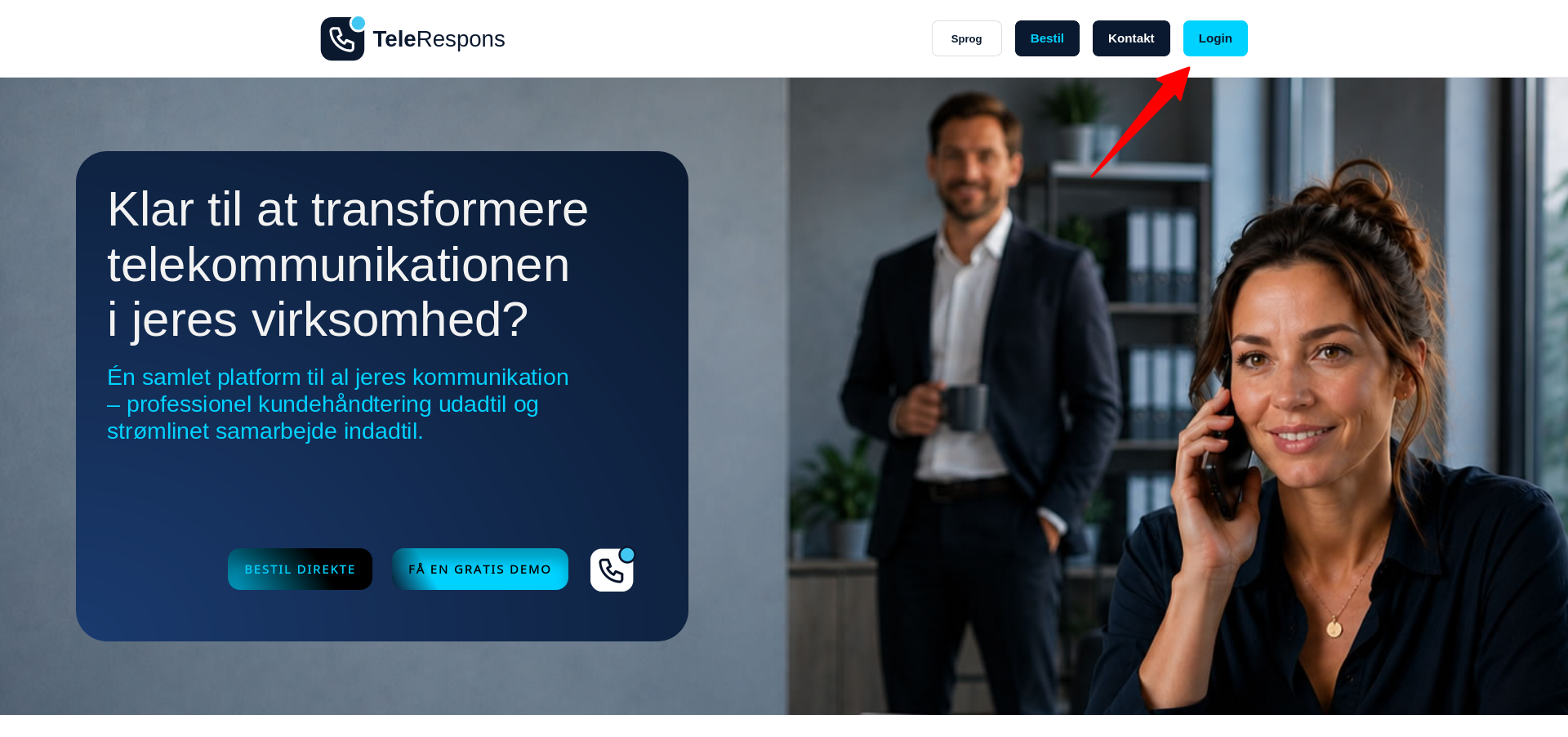
Screenshot from the customer portal in desktop view. Open it full size to see all details.
Start on the TeleRespons website. Select Login at the top of the page to access the company account.
STEP 3 OF 14
Log in to TeleRespons
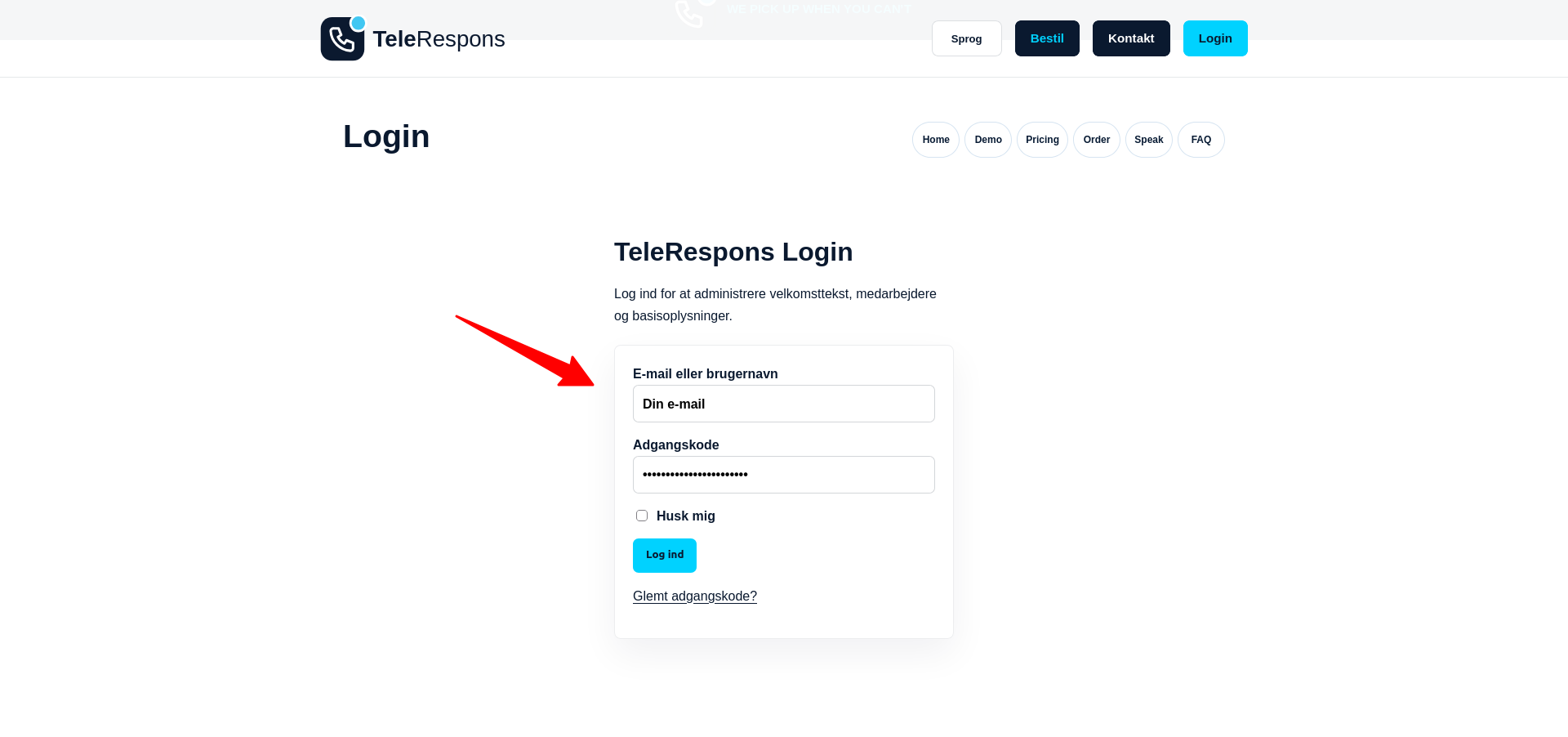
Screenshot from the customer portal in desktop view. Open it full size to see all details.
Use the company email or username and password. If you do not have a password yet, select “Forgot password?”.
STEP 4 OF 14
Review the customer portal overview
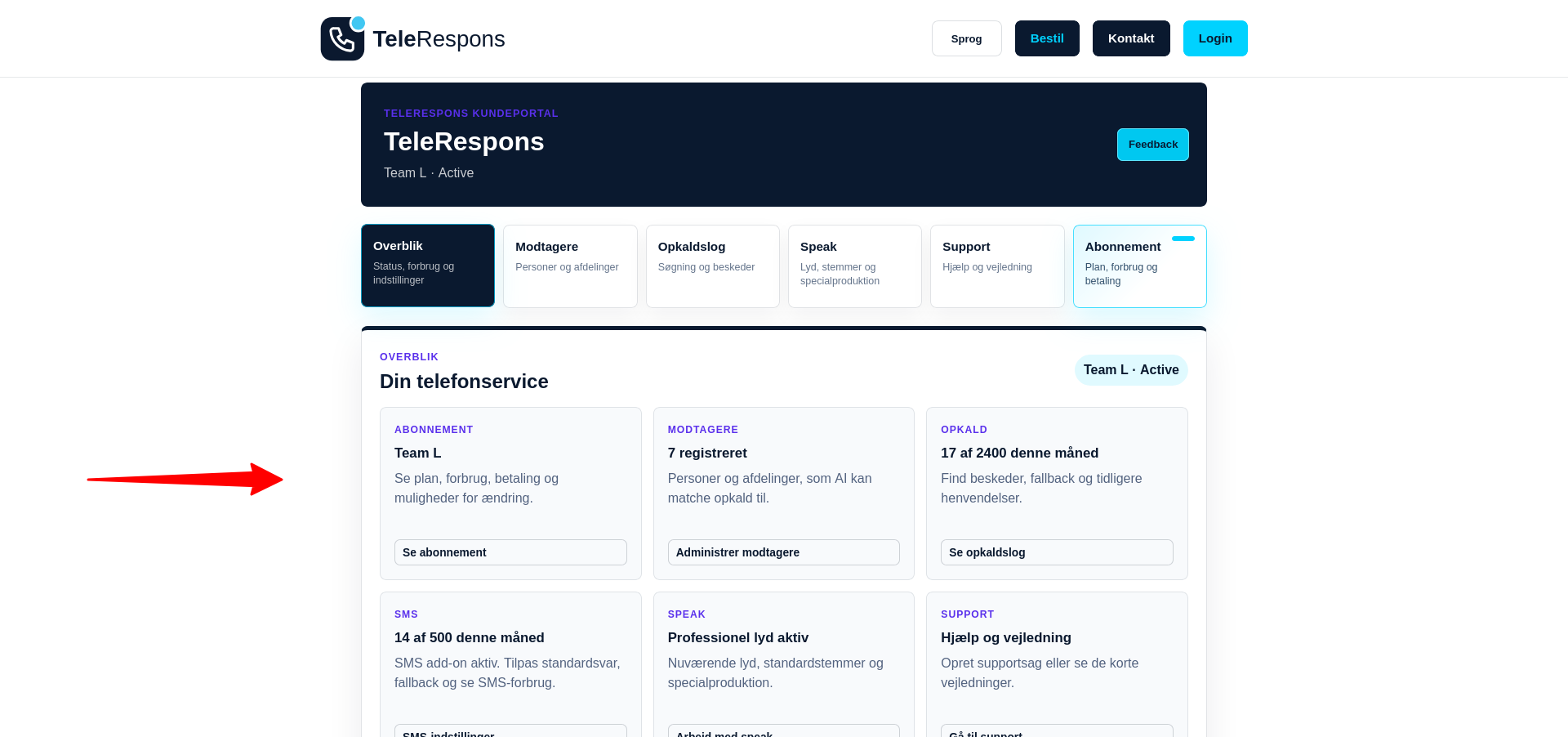
Screenshot from the customer portal in desktop view. Open it full size to see all details.
The customer portal is the company’s administration area. It gives you an overview of subscriptions, recipients, calls, SMS, Speak and support.
STEP 5 OF 14
Open Recipients
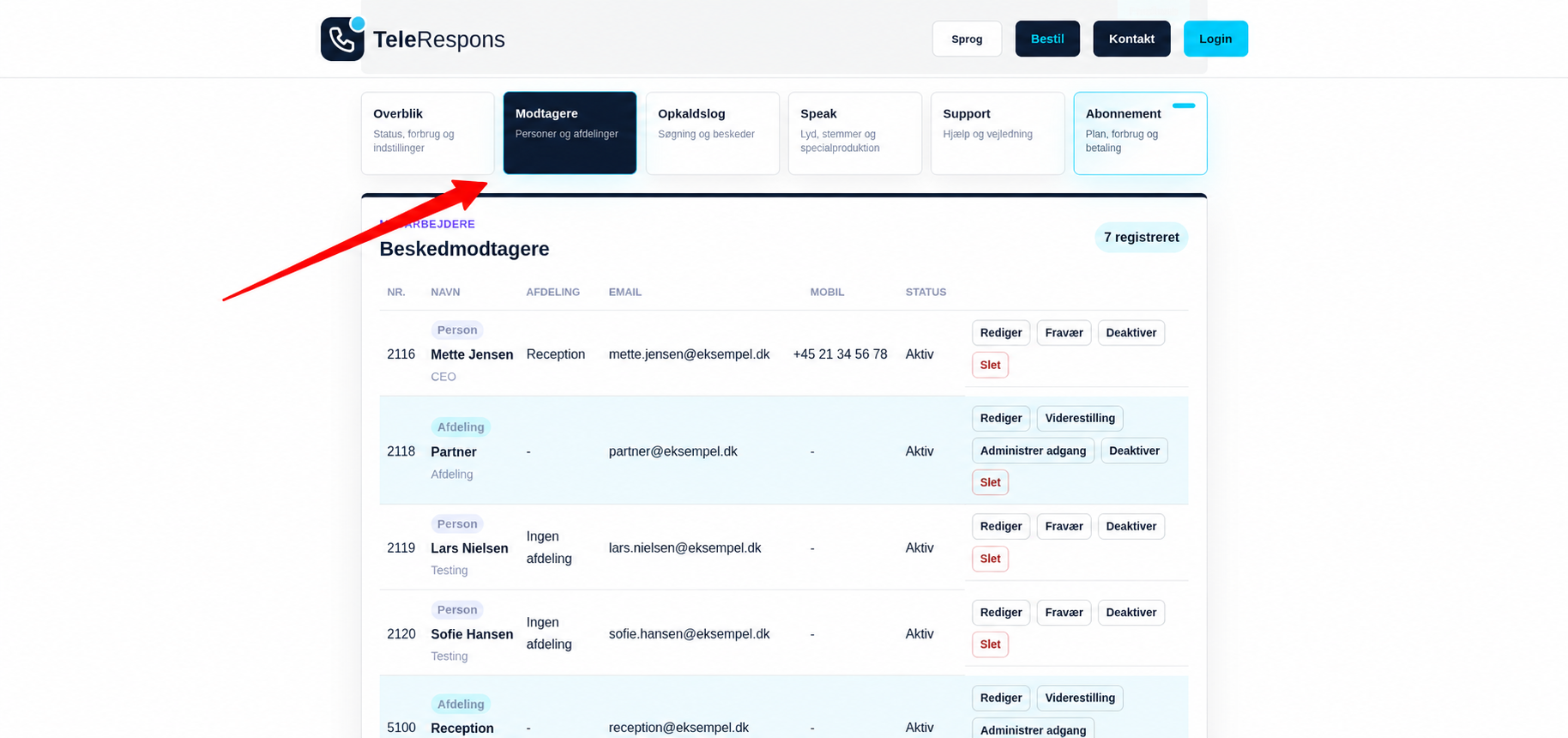
Screenshot from the customer portal in desktop view. Open it full size to see all details.
Recipients is where you manage employees and departments. You can create, edit, deactivate and remove employees and assign them to the right department.
STEP 6 OF 14
Review subscription and status
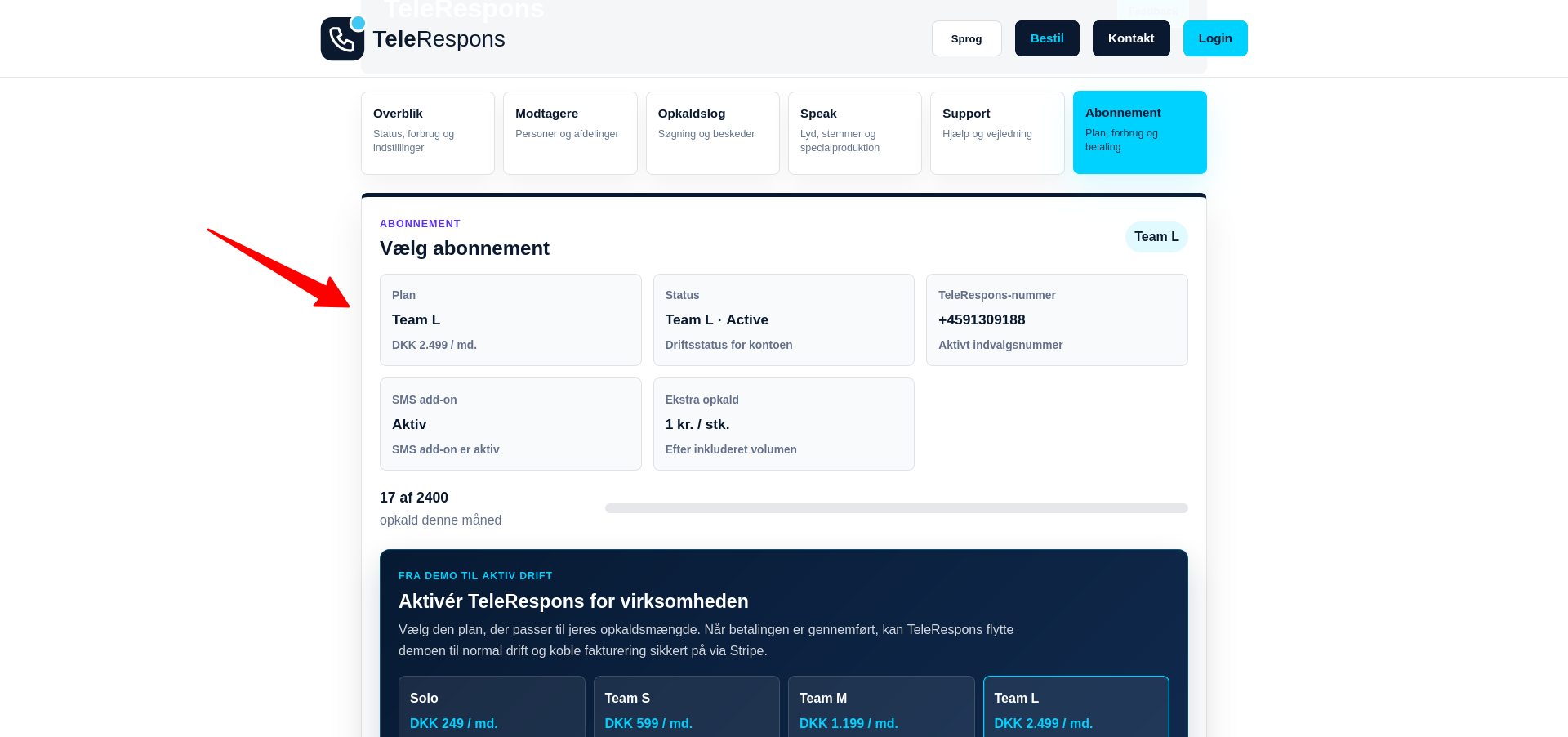
Screenshot from the customer portal in desktop view. Open it full size to see all details.
Under Subscription you can see the selected plan, status, TeleRespons number, usage and add-ons.
STEP 7 OF 14
Payment and TR Wallet
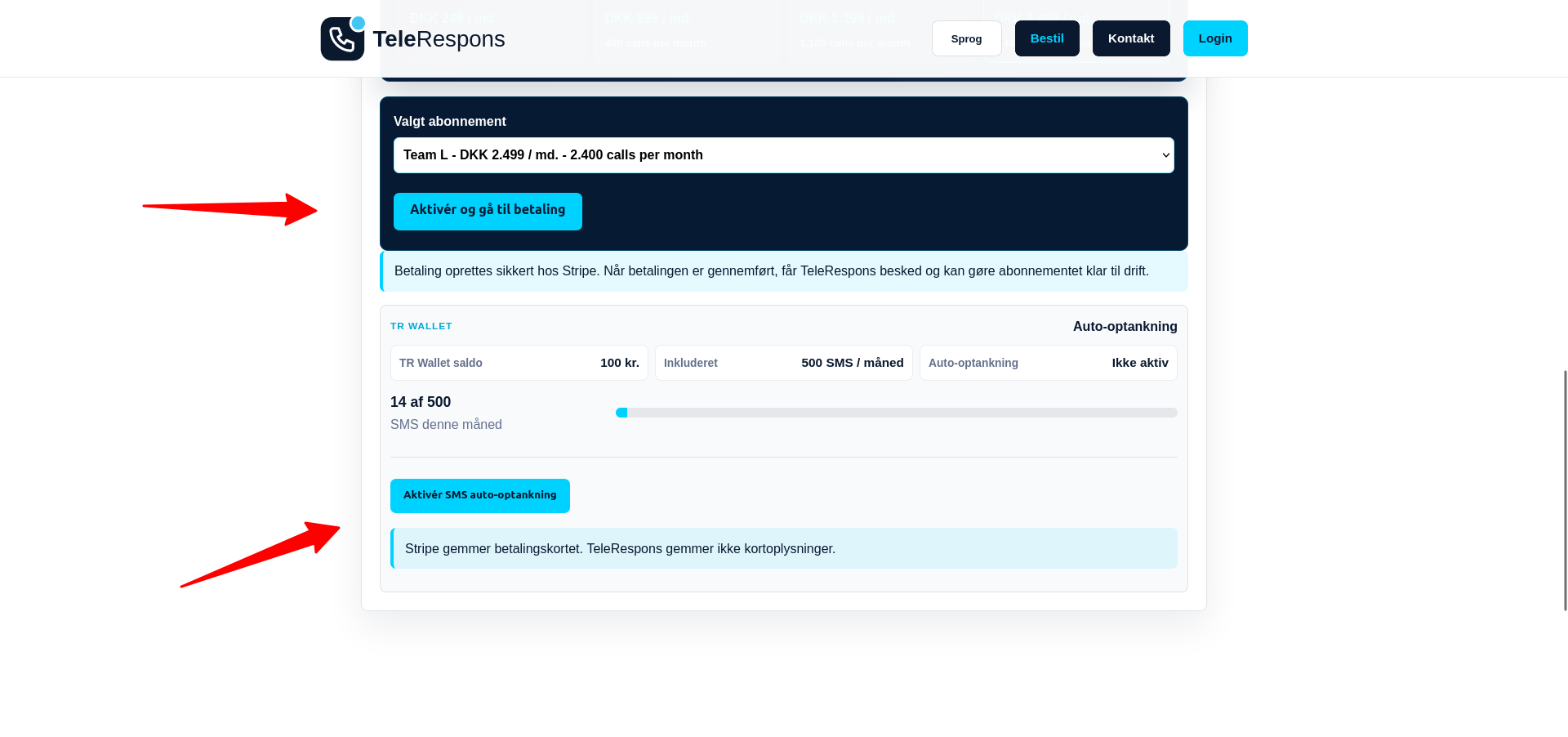
Screenshot from the customer portal in desktop view. Open it full size to see all details.
Here you can activate the subscription and review SMS usage in TR Wallet. Payments are handled securely through Stripe.
STEP 8 OF 14
Choose a person or department
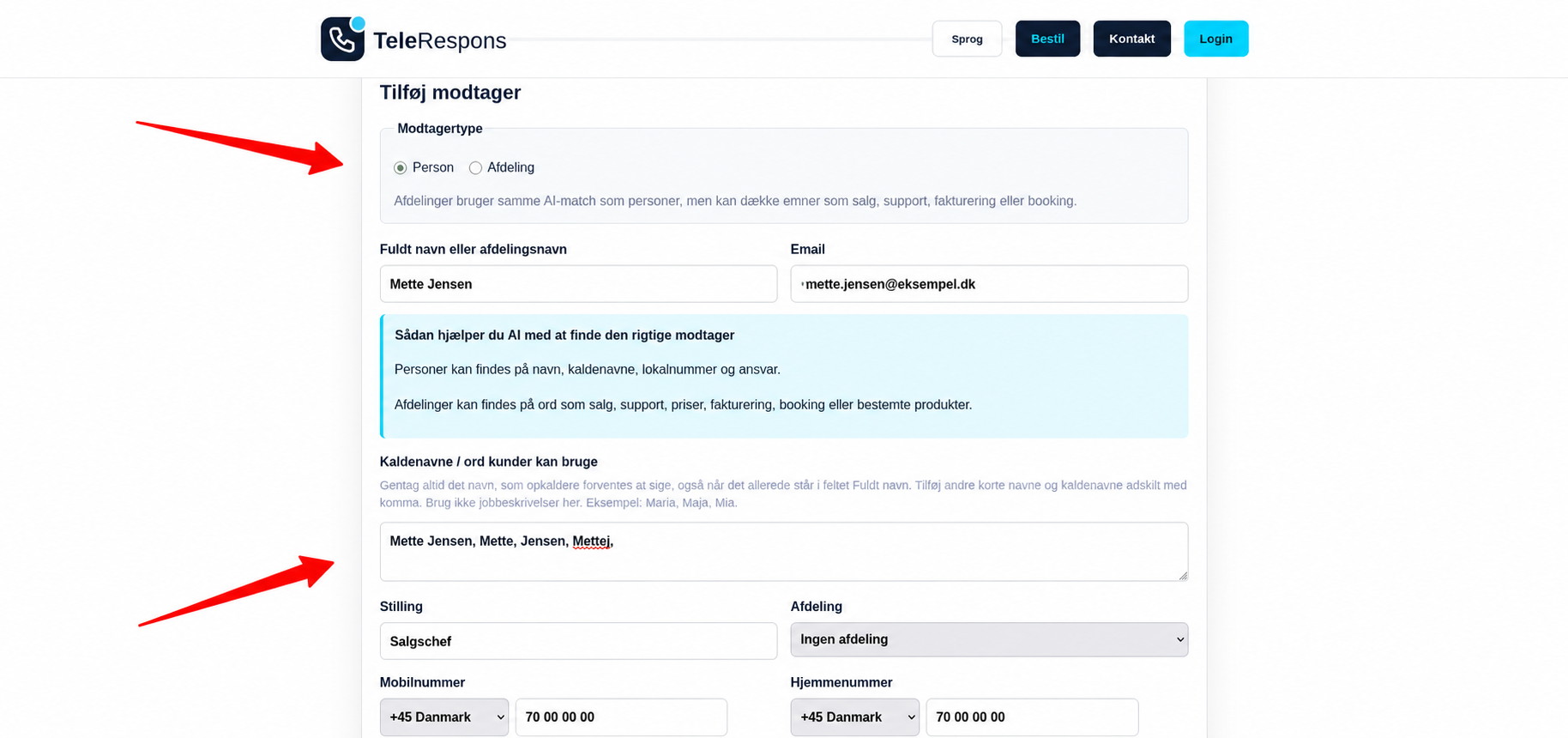
Screenshot from the customer portal in desktop view. Open it full size to see all details.
When adding a recipient, choose whether it is a person or a department. A department can be sales, support, billing or booking. Both types can be used in AI matching, but they organize different kinds of enquiries.
STEP 9 OF 14
Describe the employee’s AI responsibilities
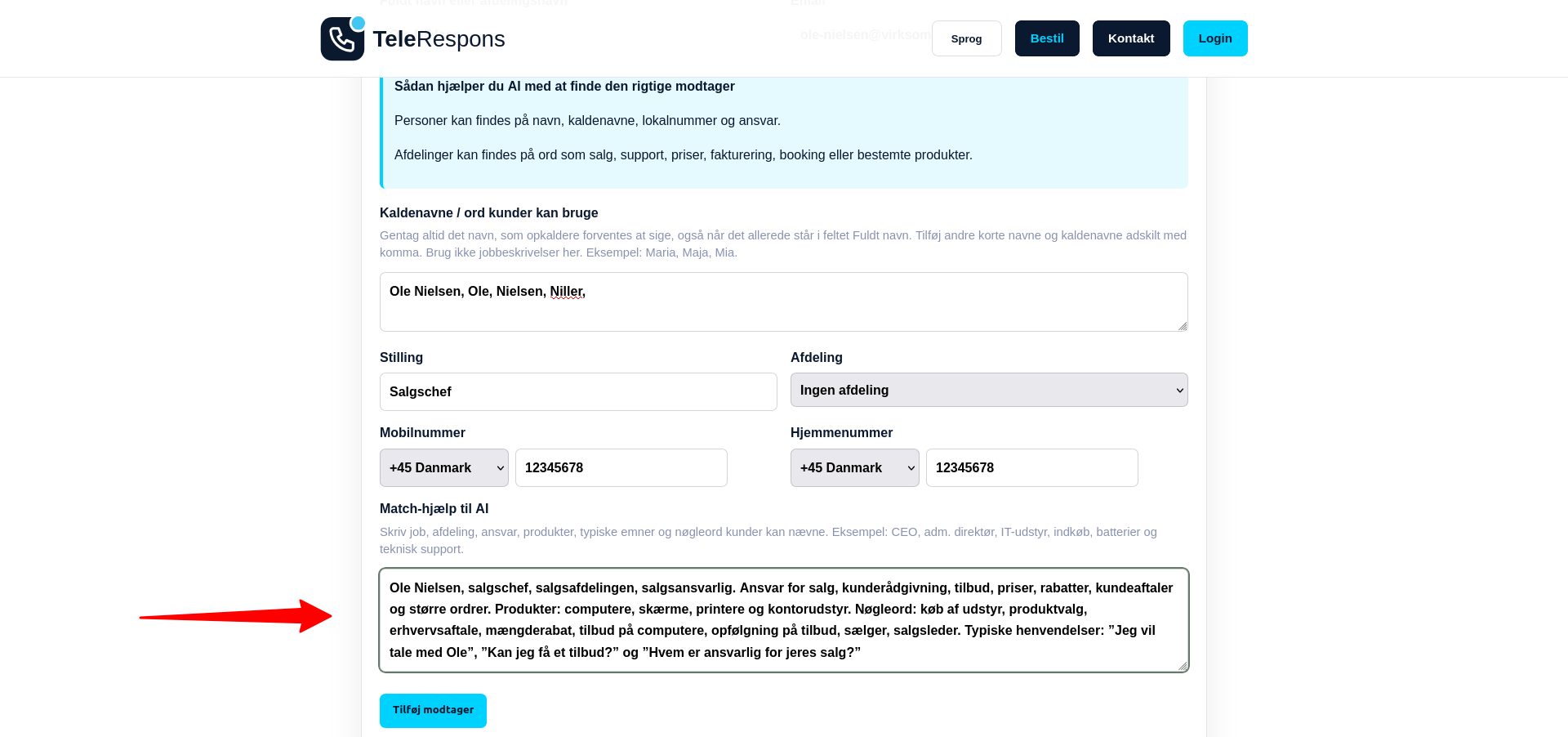
Screenshot from the customer portal in desktop view. Open it full size to see all details.
Use Match help for AI to describe the employee’s role, department, responsibilities, products, typical topics and relevant keywords. Add examples of questions where the customer should be routed to this employee. More precise information improves the AI match.
STEP 10 OF 14
Review calls in the employee portal
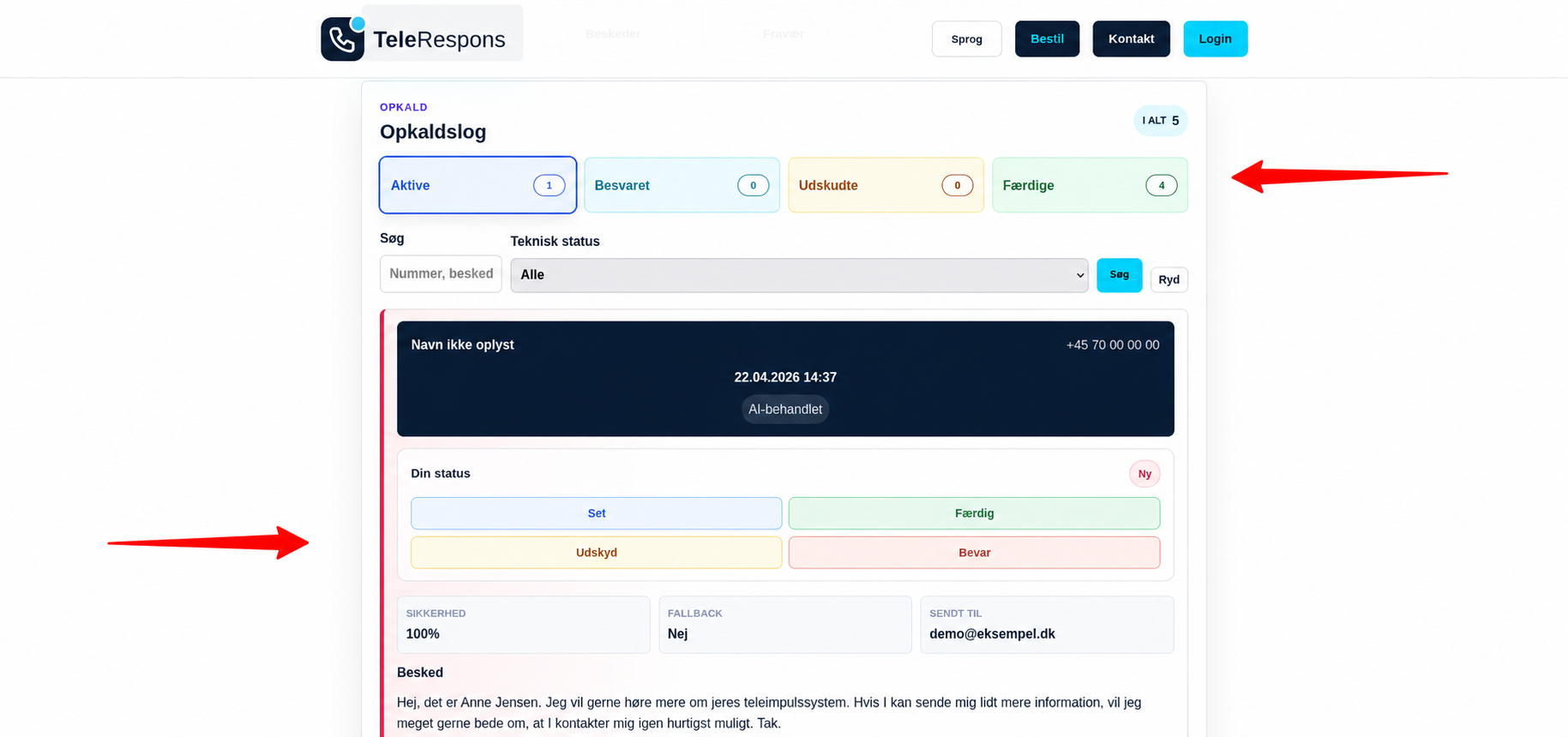
Screenshot from the customer portal in desktop view. Open it full size to see all details.
The employee portal call log gives employees an overview of active, answered, postponed and completed calls. Employees can search calls and see which enquiries need follow-up.
STEP 11 OF 14
Choose what happens next
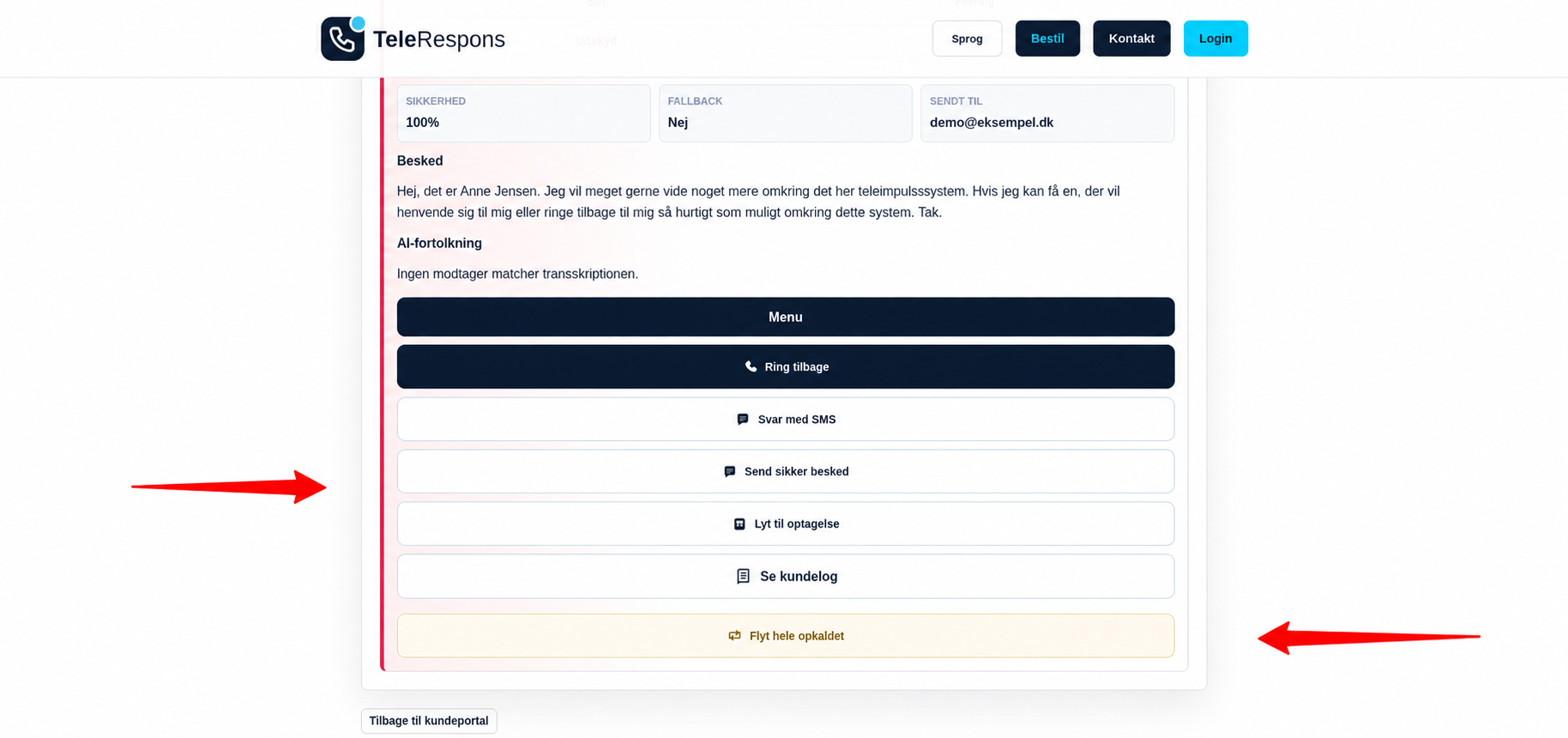
Screenshot from the customer portal in desktop view. Open it full size to see all details.
When an employee opens a call or message, they can choose the next action: call back, reply by SMS, send a secure message, listen to the recording, view the customer log or move the entire call to another employee.
STEP 12 OF 14
Download the employee app
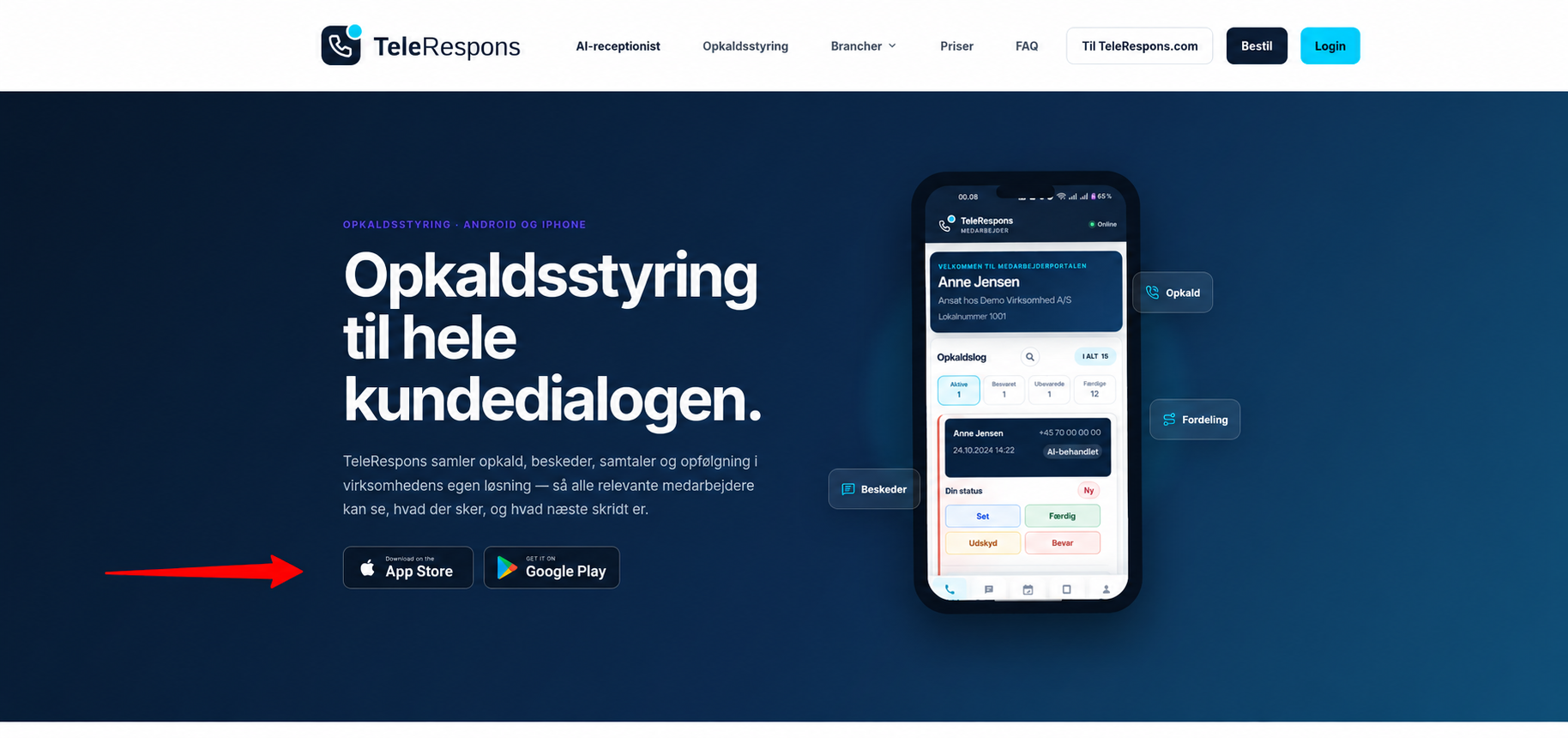
Screenshot from the customer portal in desktop view. Open it full size to see all details.
The employee portal is also available as an app for Android and iPhone. We recommend that employees download it immediately so they can follow calls, messages and tasks from their phone. The customer portal is not available as an app.
STEP 13 OF 14
Find help in the portals
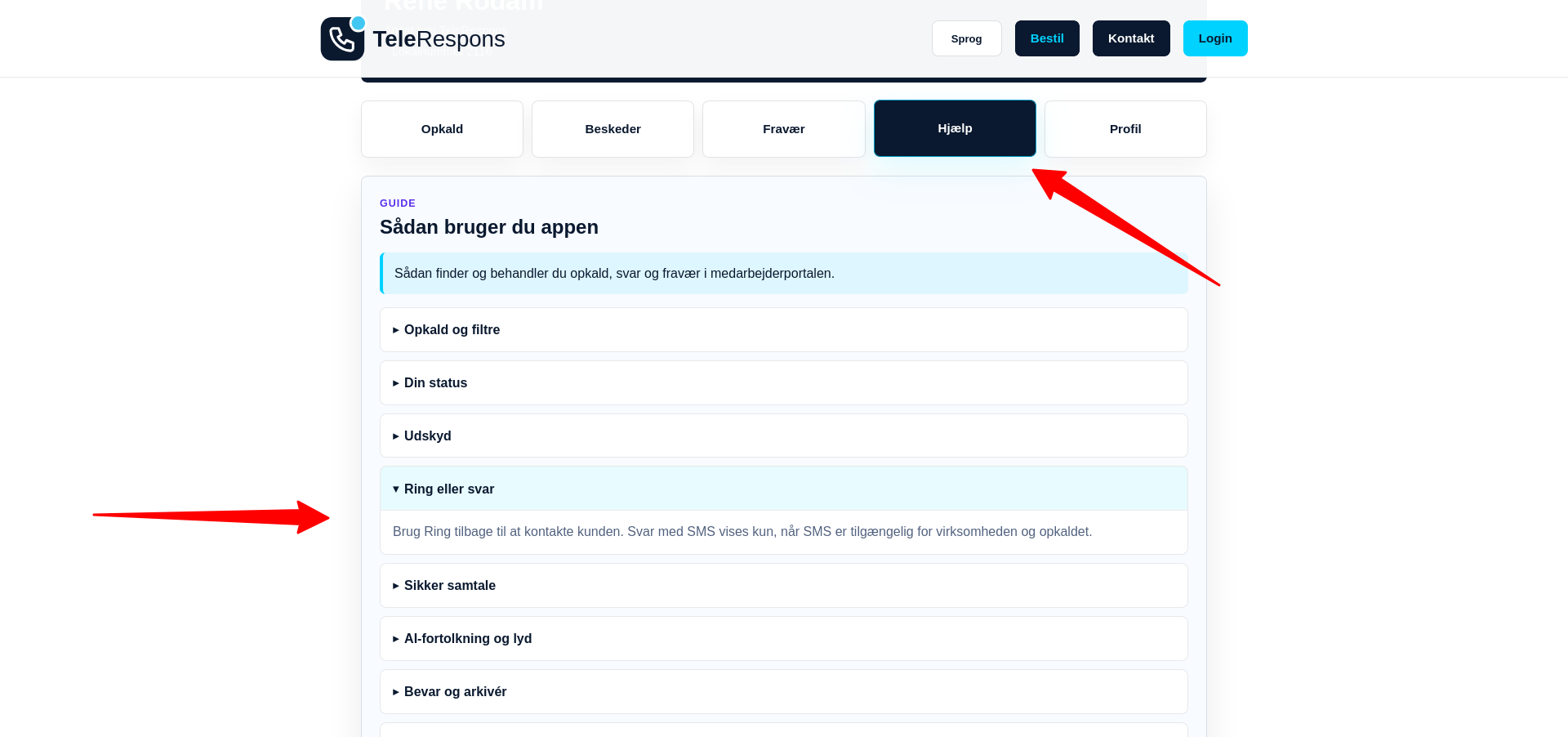
Screenshot from the customer portal in desktop view. Open it full size to see all details.
The employee portal has a dedicated help guide under Help. It explains calls, status, absence and the most important actions. The customer portal has the same kind of guidance, so both administrators and employees can get help as they work.
STEP 14 OF 14
Contact TeleRespons
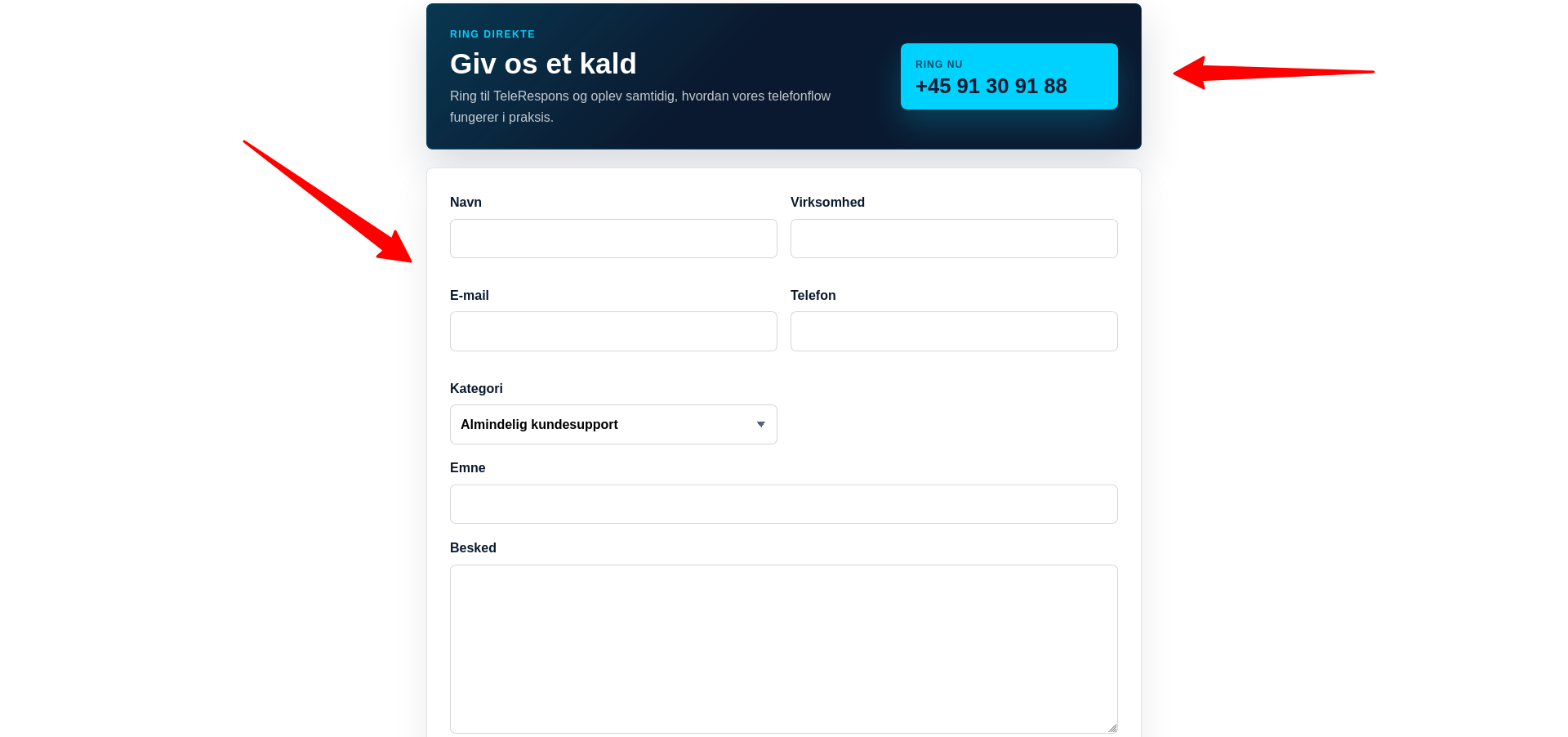
Screenshot from the customer portal in desktop view. Open it full size to see all details.
If you have questions or need help, call TeleRespons directly on +45 91 30 91 88. You can also use the contact form on the website. Support is also available from both the customer portal and the employee portal.
You can always get help from support through the customer or employee portal. Go to login
